Configuring Discounts/Concessions
Introduction
This article provides a comprehensive guide on creating and managing Discounts and Concessions that can be applied during the applicant’s fee payment journey. By setting up the right coupon type, value parameters, usage limits, and validity periods, you can ensure that only the intended applicants benefit from these offers while maintaining complete control and flexibility over their usage.
Navigation
Menu -> Fee Setup -> Manage Discounts & Concessions
Upon selecting the "Add Discount / Concession" option, you will be required to fill in the following fields:
- Coupon Type: You need to select the appropriate coupon type among Discount or Scholarship / Concession based on your specific requirement . To know more about the difference between the two, refer to this article.
- After selecting the Coupon Type , you need to provide the following details:
- Value Type: Choose how the discount should be applied (e.g. ₹500 ).
- Value: Enter the value that you want to reduce from the payable amount .Example: If the discount is ₹500 and the student’s fee is ₹10,000, the amount payable by students/applicants would be ₹9,500.
- Percentage: Enter the discount percentage (e.g., 10%)
- Percentage: Enter the discount percentage to reduce the payable amount by that rate. Example: If the fee is ₹10,000 and the student applies a 10% discount code, the payable amount will be reduced by ₹1,000.
- Max. Value: Set a maximum discount amount to cap the percentage-based discount. Example: let's consider a 10% discount with a max value of ₹800. If a student applies for a fee of ₹10,000, the student will receive ₹800 rather than ₹1000 as a discount.
- Minimum Order Value: Define the minimum payable amount that an order must meet for the discount code to be valid or applicable.
- For example, if the Minimum Order Value is set to ₹500, the discount code can only be applied if the total payable amount in the applicant’s order is ₹500 or more.
- If the order amount is less than ₹500, the code will not be applicable/visible.
- Dates: Define the period over which applicants would be able to apply the discount coupon.
- Date: The date from which the coupon becomes active.
- End Date: The last date when the coupon can be used.
Status: You can enable or disable the discount coupon depending on whether you want the applicants to be able to utilize it or not.
Once you've filled in the required fields, click on the "Save & Assign the Fee" button. This action will redirect you to the Discounts & Concessions Workflow page for the next step.
- Name: Enter a clear and recognizable name for the discount coupon to easily identify it.
- Type: Choose whether the discount should be a Single coupon or a Bulk coupon. Details for each are as follows
- Single coupon: Create a unique discount code that can be used by all the eligible applicants/students.
- Code: Code: Enter a unique alphanumeric code (minimum 5 characters) . This is the actual discount code applicants will select during payment. Example: SCHOLAR10
- Maximum No. of Uses: Set how many times this single coupon code can be used in total across applicants.
- Hide discount code from checkout: This allows you to share a specific code with selected individuals without displaying it on the checkout page for all users. Only those who have the code can manually enter it and click the Apply button to use it.
- Bulk: Generate multiple unique discount codes at once, which can be assigned individually to different students/applicants.
- Codes to be Created: Enter the total number of unique discount codes you want to generate.
- Prefix: A custom prefix to maintain consistency in coupon codes (e.g., SCHOL for scholarships).
- Number of Alphanumeric: Define the number of alphanumeric characters to be added after the prefix in the generated code to ensure uniqueness. Example: If the prefix is TEST and the No. of Alphanumeric is 6, a generated code could be TESTWH79U2 (with 6 random alphanumeric characters).
- This is ideal when you want to distribute personalized discount/concession codes for shortlisted applicants in a scholarship campaign without manually creating each one.
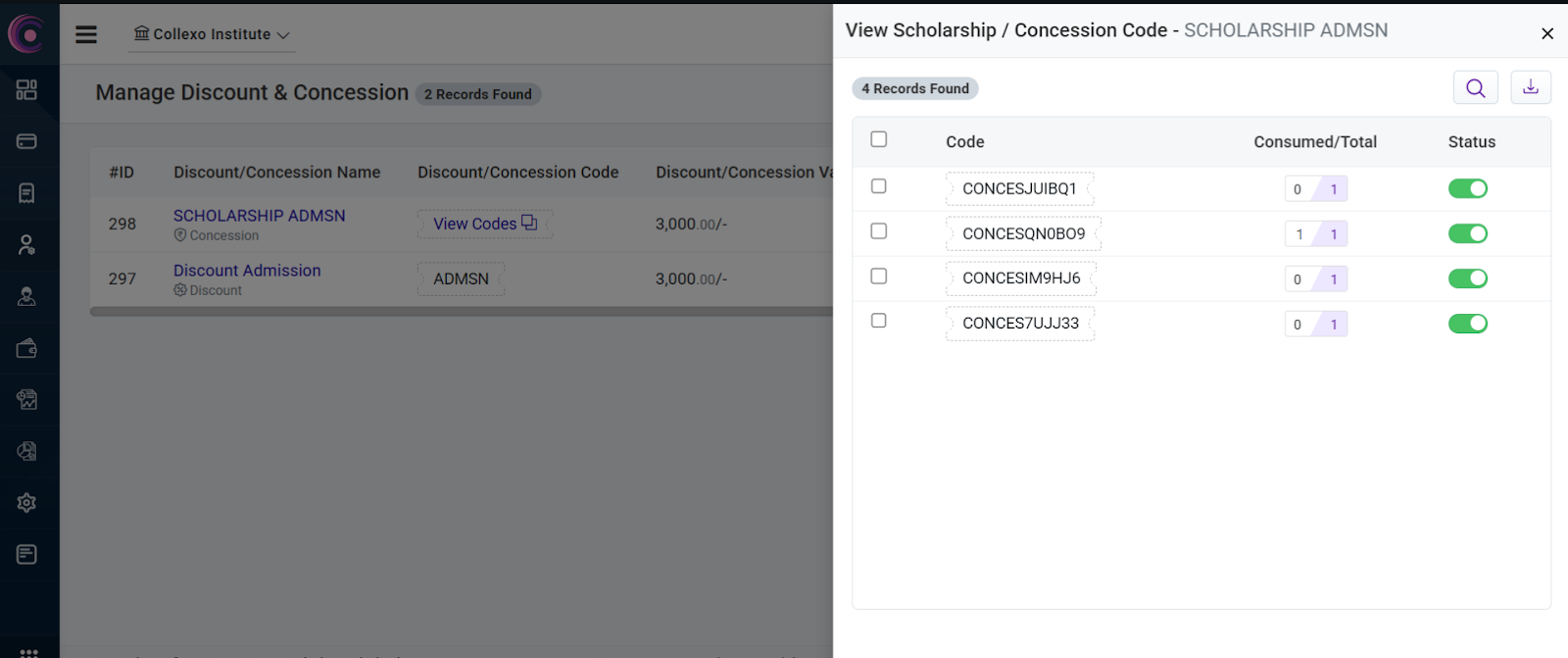
- You can view these codes by clicking on “View Codes” in the listing. A pop-up will appear, displaying all the generated codes along with the following details:
- Consumed / Total: This indicates how many codes have been used (consumed) out of the total number of codes generated. It helps you easily track which codes have been redeemed and which are still available.
- Status: It indicates whether each code is enabled or Disabled. By disabling a code, applicants won’t be able to apply it.
Conclusion
Configuring Discounts and Concessions allows institutions to offer flexible, controlled, and trackable fee benefits to eligible applicants. By carefully defining them, you can ensure that these benefits reach the right audience while maintaining transparency and ease of use. This guide serves as a complete reference to help you set up and manage discount or concession offers effectively within your system.