Manage Users
Introduction
Collexo's Manage User page lets you easily manage all users who have access to the platform. You can add new users, activate or deactivate existing users, edit details, delete users, and view profiles as needed. Collexo’s User management is based on RBAC (Role-Based Access Control) that allows administrators to define user roles and assign permissions based on responsibilities, ensuring secure and controlled access to platform features.
How to Navigate?
There are 2 ways in which you can navigate to the Manage User page
- Account Settings -> User and Permission -> Users
- Menu -> Admin Setting -> Manage User
Accessing the Manage user page
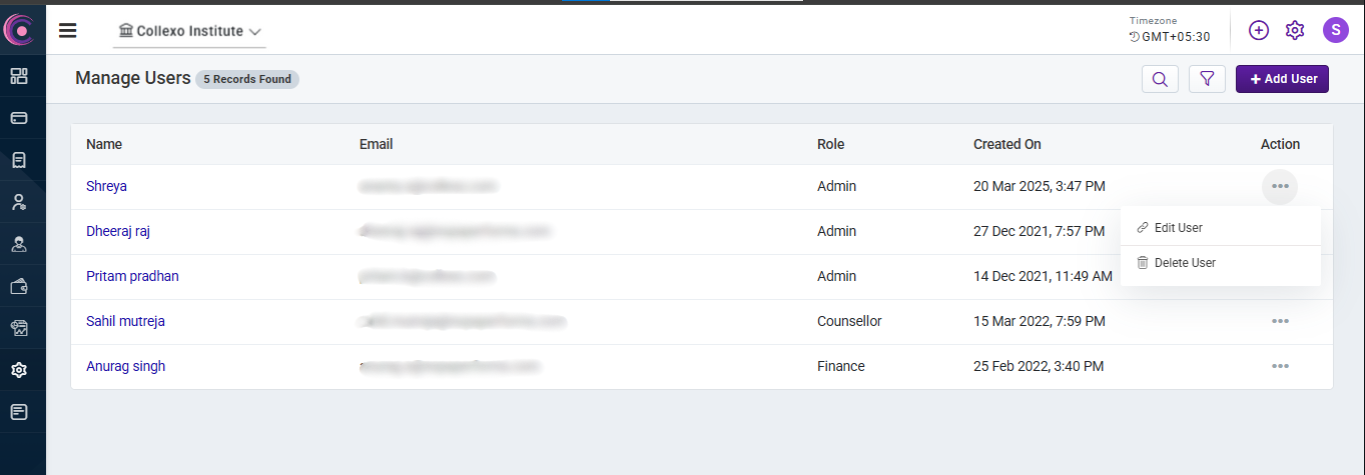
Once you navigate to the “Manage User” page, you'll get a centralized view of all your institute’s users that have access to Collexo’s Institute Portal.
Users with the appropriate permissions can edit and update user roles to ensure platform access remains restricted to the right individuals.
How to add a New User?
There are 2 ways in which you can add a new user :
- If you are on the “Manage User” page, you can add a new user by clicking on the “Add User” button.
- Alternatively, if you're in the “User & Permission” section under the “Account Settings” page, you can directly select “Add User” from there.
Upon clicking on the button, a pop-up will appear where you’ll need to fill in the following details to complete the process:
- Role: Select the appropriate role from the dropdown menu. To learn more about each available role, refer to this article.
- Email: Enter the email address of the user to be added. The user will receive an invite link to activate their account. (Note: The invitation link is valid only for 24 hrs) User has to setup their account before the link expires.
How can the User Activate their Account ?
Once the user receives the invite, they can activate their account by clicking on the link and signing up on Collexo’s Institute Portal. They would have limited access to the Institute Portal based on their role.
User Roles can also be modified or updated later if needed, allowing for flexible access management.
Conclusion
By leveraging both default and custom roles, Collexo ensures that every team member has the right level of access and control. This structured approach enhances security, simplifies operations, and aligns platform access with institutional responsibilities.