Fee Collection Summary
Introduction
Managing fee collections in educational institutes such as universities, colleges, and coaching centers can be complex, especially when you need real-time visibility of various fee categories, applicant status, and payment details.
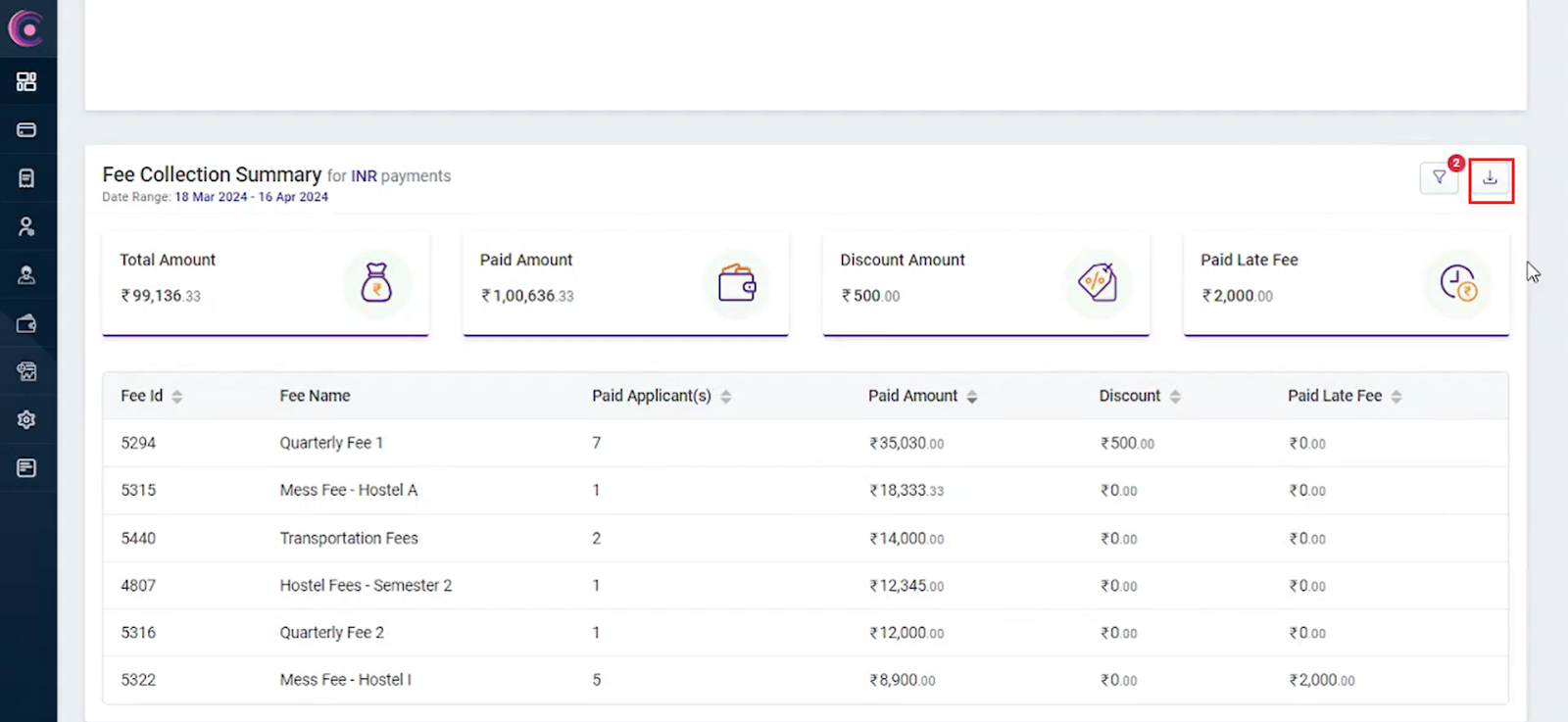
The Fee Collection Summary provides a consolidated, fee-wise view of payments , whose details are not reflected in the payment Ledger but are summarized here for reporting and analysis.This section enables institutes to analyze collection performance, track payment trends, and understand how different fee types contribute to overall revenue during a selected time period.
Navigation
To access the webhook settings:
- Go to the menu
- Select Dashboard
- Choose Payment Dashboard
- Scroll to Fee Collection Summary
The Fee Collection Summary displays these core metrics:
- Total Amount: This represents the total fee amount that was expected or applicable during the selected date range.
- Paid Amount: This shows the total amount successfully collected from all applicants who have completed their payment(s).
- Discount Amount: This shows the total discounts applied across all payments in the selected period
- Paid Late Fee: This shows the sum of late fees collected as part of the payment process.
Fee-wise Collection Table
Below the summary metrics, the Fee-wise Collection Table provides a detailed breakdown of collections at an individual fee level. Each row represents a specific fee configuration, allowing institutes to evaluate performance and contribution in greater detail.
Each row in the table includes the following information:
- Fee Id: This id is a unique identifier for each fee type.
- Fee Name: It displays the fee name as configured in Fee Studio (for example, Quarterly Fee 1 or Mess Fee – Hostel A), helping users easily identify the fee.
- Paid Applicants: It defines the number of applicants who have successfully paid for that specific fee type.
- Paid Amount: It is the total value collected for the fee.
- Discount: It is the value of discounts provided for each fee category.
- Paid Late Fee: It is the amount of late fees paid, if any.
Filter Options
You can customize your analysis with the following filters:
- Fee Name: You can multi-select fees from the dropdown.
- Currency: Select the currency you want to view collections for.
- Payment Date: Set a date range to see fee collection summaries within your specified timeframe.
Download Feature
The Fee Collection Summary can be downloaded as a report for offline analysis or internal sharing with management and finance teams.The exported report reflects all applied filters, ensuring that users receive tailored and relevant data based on their selection criteria.
Conclusion
The Fee Collection Summary in Collexo streamlines fee tracking, offering actionable insights with granular data and powerful filtering. This section helps institute staff maintain financial transparency, make efficient decisions, and respond effectively to internal and external queries about fee status.
Related Articles
Payment Trends
Introduction For any educational institution closely monitoring fee collections, patterns, and trends is crucial for streamlined operations. The "Payment Trends" report is designed to help you easily understand overall and granulated payment ...Loan Application
Introduction Collexo empowers you to make fee collection easy and flexible by letting students pay their fees using a loan from trusted third-party partners. By offering a "Pay Later" option at checkout, you open up the possibility for students and ...Payment Records
Introduction As an institution, you often need quick access to accurate and approved payment data for reporting, audits, and internal reviews. The Payment Records page helps you do exactly that. It gives you a clear, consolidated view of all ...Track Payments
Introduction Managing student payments can be challenging for any institute. Payments are received from multiple channels, may be paid in full or as installments, and at times require refunds or offline entries. Tracking these payments manually using ...Settlement Report
Overview Settlements are the process in which the fees received from students/applicants are settled in your bank account(s). The Settlement Report contains details of the settlements processed to your account and helps you reconcile the settlements. ...