Track Payments
Introduction
Managing student payments can be challenging for any institute. Payments are received from multiple channels, may be paid in full or as installments, and at times require refunds or offline entries. Tracking these payments manually using spreadsheets or exporting data from gateways is time-consuming, error-prone, and can create confusion, payment disputes, or delayed responses to students and parents.
To resolve these issues, Collexo provides the Track Payments module a centralized report that consolidates all transactions, payment receipts, and refund activities at one place. Using this module, you can monitor, reconcile, and manage all student payments efficiently, resolve queries faster, and ensure total transparency in your institute’s financial operations.
Navigation
To access the Track Payment :
- Go to the menu
- Select Transaction
- Choose Track Payment
The Track Payments page is divided into three sub-sections:
- Payments: It displays details of all fee related transactions.
- Refunds: It displays details of all initiated or processed refunds.
- Credit Note: It displays details of all adjusted transactions.
Payments Page
- The Payments subpage provides a detailed list of all transactions made by students.
- Clicking an Order ID (or selecting “View Details” from the action menu) opens a detailed popup with sections as follows :
- Payment Details: This section shows the details of the payment like amount, status of the payment, mode of payment,fee name, gateway details etc.
- Fee Breakup: This section displays distribution across different fee heads, including total amount, paid amount, and any discounts applied.This can help you understand the exact components of the payment.
- Related Orders: This section appears only when the applicant has made partial payments for the same fee.It displays the details of all the previous and subsequent partial payments linked to the applicant .
- Action Menu (3 dots on far right of each row):
- View Details: This option opens the detailed transaction popup, allowing you to review all the payment related details.
- Issue Refund: This option allows you to initiate a refund request in case any discrepancy occurs in the fees amount like extra amount etc.
- Download Receipt: This option instantly generates and downloads payment receipt for that particular transaction.
- Revert Payment: This option is available only for offline modes such as DD or Cash.You can use this option to revert the transaction if required.
Additional Options
- Mark Offline Payments: Payments made outside the system (e.g. DD,cash,cheque etc) can be recorded in the system using the Mark Offline Payment option. To know more about how to mark payments offline,Kindly refer to this article.
- Downloads: You can select entries that can be downloaded for offline record-keeping and reconciliation.
Additional Search & Filter Options
These features allow you to quickly locate and analyze specific transactions:
- Search Options: You can search by selecting a search parameter/identifier (Order ID, Student Name, Mobile No, etc.) from the dropdown and entering the detail in the adjacent text box.
- Filters:
- Default Filters: You can select from the default filters to refine your data.
- Additional Filters: Any dynamic field for which the “Add to Report” toggle is enabled can be used as a filter to drill down results by more specific details (for example, class, section, state).
Refunds Page
The Refunds subpage consolidates all transactions marked as refunded.It allows you to view and manage all refund requests whether initiated, pending, or processed.
Navigation
You can initiate refunds from:
- Payments page → Action Menu → Issue Refund.
- Refunds page → Click the Issue Refund button at the top right.
Refund Details
- Refund ID: This ID is clickable and opens a detailed view of the refund record.
- Order ID: Clicking the Order ID shows you the full payment details associated with the refund, helping you verify the original transaction instantly.
- Report Download: You can select entries using checkboxes and download the refund report.
Search & Filter Options
- Search: You can search by selecting a search parameter/identifier (Order ID, Student Name, Mobile No, etc.) from the dropdown and entering the detail in the adjacent text box.
- Filters: You can select from the default filters like Refund Status, Refund Type, Refund Date, Refunded Via.
Credit Note Page
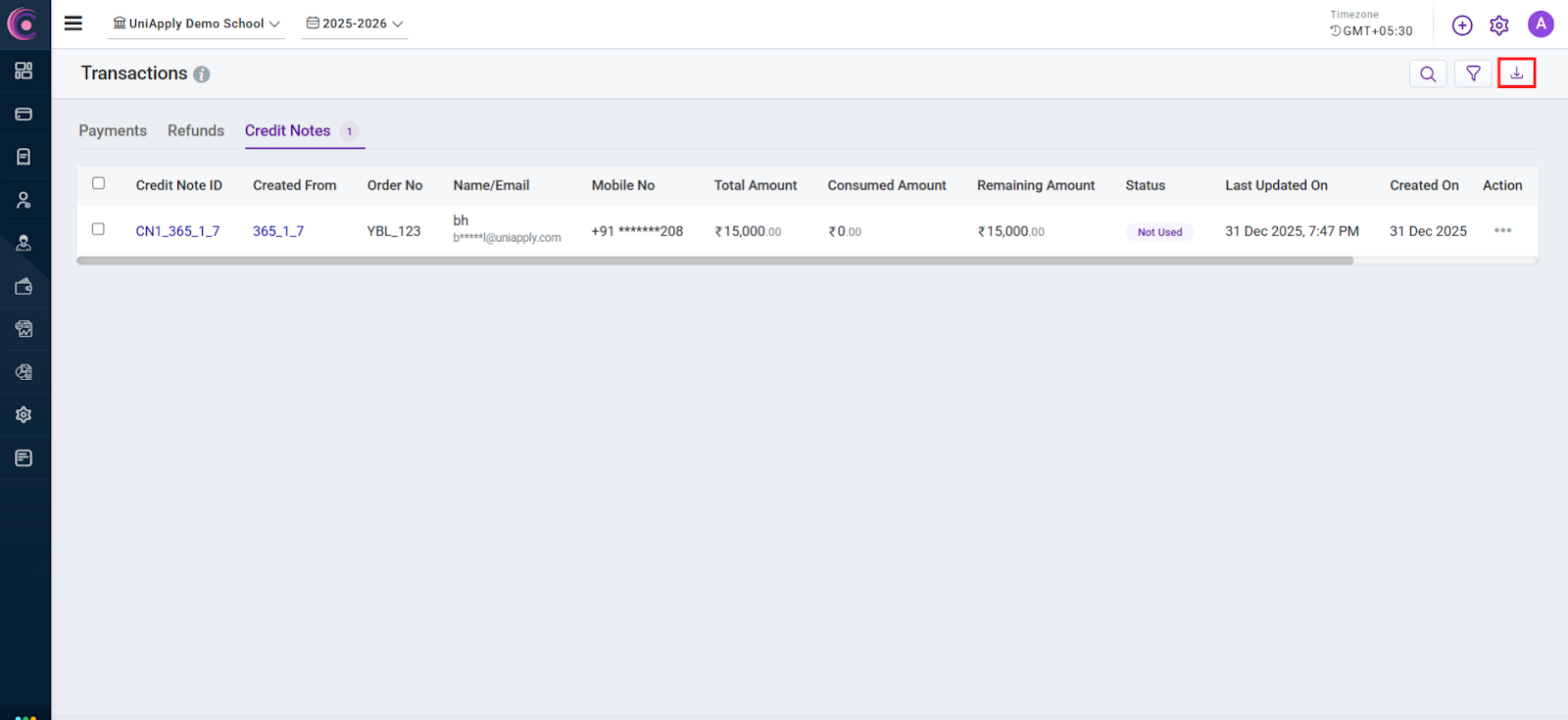
The Credit Note subpage provides a consolidated view of all fee adjustments made using Credit Notes. It helps you track corrected payments, reused credits, and adjusted amounts in a transparent manner, without relying on manual records or support tickets.
- You can initiate credit note from:
- Payments page → Action Menu → Issue credit note.
Credit Note Details
The listing includes key details such as:
- Credit Note ID: A unique identifier for the issued Credit Note. Clicking on it opens the detailed Credit Note view.
- Order ID: Displays the original payment order against which the Credit Note was issued. Clicking it opens the related payment details.
- Applicant Details: Name and basic identifiers of the applicant linked to the adjustment.
- Total Amount: The total amount issued as a Credit Note.
- Consumed Amount: The portion of the Credit Note that has already been used for fee adjustment.
- Remaining Balance: The available amount that can still be applied to future payments.
- Status: Indicates whether the Credit Note is fully utilized, partially utilized, or unused.
- Created Date: The date on which the Credit Note was issued.
- Last updated date: The date on which the data was updated.
Downloads
You can select one or multiple Credit Notes using checkboxes and download the report for offline reconciliation, auditing, or internal tracking.
Search & Filter Options
To help you quickly locate specific adjustments:
- Search: You can search by selecting a search parameter/identifier (Credit Note ID, Order ID, Student Name,etc.) from the dropdown and entering the detail in the adjacent text box.
- Filters: You can select from the default filters like status, date range, or amount to narrow down results and analyze adjustments efficiently.
Conclusion
The Track Payments feature provides institutes with complete visibility into all student transactions.By centralizing transaction management, supporting offline and online payments, and offering flexible reporting, Collexo ensures accurate record-keeping, faster query resolution, and greater financial transparency for institutes.
Related Articles
Download Request
Introduction As you work with data across your institution’s portal, it’s important to keep track of the files you and your team downloads. The Download Requests page helps you do exactly that. It provides a centralized view of every download ...Fee Collection Summary
Introduction Managing fee collections in educational institutes such as universities, colleges, and coaching centers can be complex, especially when you need real-time visibility of various fee categories, applicant status, and payment details. The ...Loan Application
Introduction Collexo empowers you to make fee collection easy and flexible by letting students pay their fees using a loan from trusted third-party partners. By offering a "Pay Later" option at checkout, you open up the possibility for students and ...Payment Trends
Introduction For any educational institution closely monitoring fee collections, patterns, and trends is crucial for streamlined operations. The "Payment Trends" report is designed to help you easily understand overall and granulated payment ...Upload Logs
Introduction The page allows users to track and review all bulk upload activities related to applicant and transaction data. Whether you’re adding new applicant records, updating existing ones, or uploading transactions in bulk, the corresponding ...